
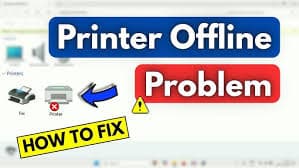
1. Check Printer Power and Connections:
The most common reason for a printer appearing offline is a disruption in communication between the printer and the computer. Before changing any software settings, always verify the physical hardware.
- Power: Ensure the printer is turned on and connected directly to a wall power outlet. Avoid surge protectors if the printer is randomly shutting off.
- Wired Connections: Inspect the USB or Ethernet cable for damage. Try connecting the USB cable to a different port directly on the computer's motherboard, bypassing any USB hubs.
- Wireless Connections: Verify that the printer is linked to the exact same Wi-Fi network as your computer. If the printer supports both 2.4GHz and 5GHz, make sure your PC is on the same band. If the Wi-Fi signal is weak, bring the printer closer to the router and remove electronic devices that can disrupt signal strength.
2. Restart Printer and Network Devices:
A simple power cycle clears the RAM of your devices and forces them to re-establish a fresh connection to the network. This resolves temporary IP assignment glitches.
- Turn off the printer using the physical power button.
- Unplug your Wi-Fi router from the power source and wait for at least 60 seconds.
- Plug the router back in and wait for the internet lights to turn solid green.
- Turn the printer back on. Finally, restart your computer.

3. Disable 'Use Printer Offline' Mode:
Windows has a specific setting that forces a printer into offline mode, usually triggered after a failed print job. You must uncheck this setting manually.
- Open the 'Control Panel' on your Windows computer and select 'Devices and Printers'.
- Right-click on your specific printer model and select 'See what's printing'.
- In the new window, click the 'Printer' tab at the top left.
- Look down the dropdown menu and ensure that 'Use Printer Offline' does NOT have a checkmark next to it. If it does, click it to remove the checkmark.
- Cancel any pending print jobs in the queue and try printing a test page.
4. Run the Built-in Print Spooler Troubleshooter:
The print spooler is a Windows service that manages print jobs. If it crashes, your printer will appear offline.
- Press the Windows Key + R to open the Run dialog box.
- Type 'services.msc' and press Enter.
- Scroll down the alphabetical list until you find 'Print Spooler'.
- Right-click on 'Print Spooler' and select 'Restart'. If 'Restart' is greyed out, click 'Start'.
- Ensure the Startup Type is set to 'Automatic'.
5. Update or Reinstall Printer Drivers:
Corrupt drivers can sever the communication link between your OS and the printer hardware.
- Visit your printer manufacturer's official support website.
- Navigate to the 'Software and Drivers' section.
- Enter your exact printer model number.
- Download the 'Full Feature Software and Driver' package for your specific Operating System.
- Uninstall the old driver via Control Panel, restart your PC, and install the newly downloaded driver package.
After the driver is installed, print a test page to verify connectivity.
6. Check Printer and Network IP Configuration:
Printers are often assigned dynamic IP addresses by the router. If the router changes this IP address, your computer will lose the printer, causing an offline status.
- Print a 'Network Configuration Page' directly from your printer's control panel.
- Locate the IP address on the printed page (e.g., 192.168.1.15).
- Type this IP address into a web browser on your computer to access the Embedded Web Server (EWS).
- Navigate to the Network settings and change the IP configuration from 'Automatic (DHCP)' to 'Manual (Static)'.
- Assign an IP address outside of your router's normal DHCP range to prevent future conflicts.
7. Disable SNMP Status (Windows Only):
Simple Network Management Protocol (SNMP) is used to monitor network devices, but it can falsely report a printer as offline in Windows 10 and 11.
- Open 'Control Panel' and navigate to 'Devices and Printers'.
- Right-click your printer and select 'Printer Properties'.
- Go to the 'Ports' tab and select your printer's active network port.
- Click 'Configure Port'.
- Uncheck the box that says 'SNMP Status Enabled' and click OK.
Summary
By following these in-depth steps, you can typically resolve the "Printer Offline" issue and restore your printer to normal operation. There are advanced network configuration reasons for your printer not going online, but you will need a certified printer support technician to thoroughly examine your router and find the issues. We provide 24/7 tech support for all printer brands. If you have any problem regarding your printer, you can simply go to the home page and fill out the contact form, and our dedicated technicians will call you in minutes.