

1. What Does 'Error State' Mean?
The 'Printer in Error State' message is a generic Windows notification. It simply means Windows tried to send data to the printer, but the printer responded with a hardware halt flag, or didn't respond at all. It is a symptom, not a specific disease.
2. Verify Physical Printer Status:
Windows cannot tell you *why* the printer halted, so you must inspect the machine.
- Check the LCD screen on the printer for specific error codes or flashing warning lights.
- Check if the printer is out of paper, or if the paper is jammed.
- Ensure the printer cover, rear access doors, and paper trays are fully closed. A slightly open door triggers an error state.
- Verify ink or toner levels. Some printers enter a hard error state if a color cartridge is completely depleted, even if you are printing in black and white.
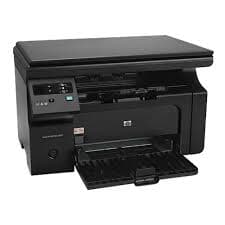
3. Check Windows Port Settings:
If Windows is trying to send the print job to a USB port, but the printer is connected via Wi-Fi, it will trigger an error state.
- Open "Control Panel" > "Devices and Printers".
- Right-click the printer in question and select "Printer Properties" (Not 'Properties').
- Go to the "Ports" tab.
- Look at the port with the checkmark. If you are using Wi-Fi, it should be checked on a 'WSD Port' or 'Standard TCP/IP Port'. If it is checked on 'USB001' or 'LPT1', it is trying to send data to the wrong place.
- Update the checkmark to the correct port and click Apply.
4. Run the System File Checker (SFC):
Sometimes corrupted Windows system files disrupt USB or network communication, causing the error state.
- Click the Start button, type 'cmd'. Right-click 'Command Prompt' and select 'Run as Administrator'.
- Type the command: 'sfc /scannow' and press Enter.
- Wait for the scan to reach 100%. Windows will automatically replace any corrupted communication files it finds.
- Restart your PC and test the printer.
5. Reinstall the Device:
If hardware is fine and ports are correct, the driver profile is likely corrupted.
- Go to Device Manager, find your printer, right click and 'Uninstall device'.
- Unplug the printer, restart the PC, and reinstall the latest drivers from the manufacturer's website.
Summary
Because the 'Error State' message is a generic Windows alert, systematically checking hardware status first, followed by software port settings, will usually pinpoint the fault. Do not ignore blinking lights on the printer itself, as they hold the true answer.